Why Is the Headphone Icon Showing When No Headphones Are Connected?
Causes and Solutions
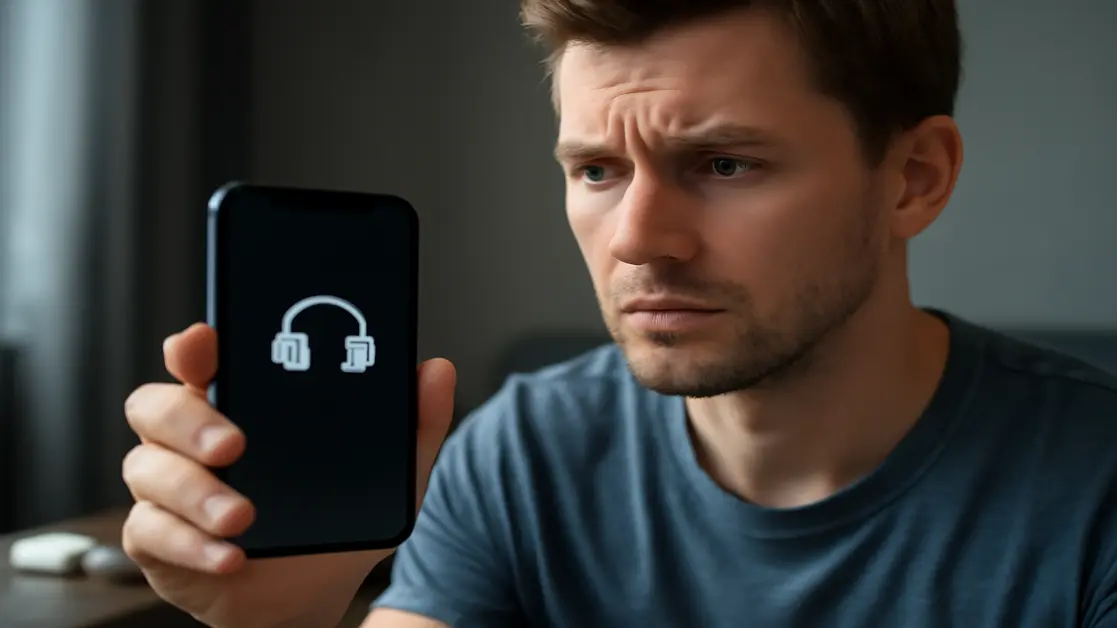
The problem of the headphone icon appearing on the phone screen despite not having earphones connected is one of the most perplexing and annoying faults for users, as a sudden malfunction occurs that leads to sound interruption or automatic switching to the external headphone jack. This issue recurs among many smartphone owners of various types, and the reasons often range from dust or moisture accumulation in the headphone port, hardware malfunctions, or even simple software issues. In this article, we will analytically and in detail review all potential scenarios behind the problem, explaining the impact of each fault on phone usage and the importance of professional inspection and maintenance to ensure the device operates efficiently and avoid greater future damages.
Contact WhatsApp for Mobile Repair
Common Factors for the Headphone Icon Appearing Without Actual Connection
There are several technical reasons behind the appearance of the headphone icon without an actual earphone connected. These reasons vary between physical and software factors, and each scenario has its own symptoms and directly affects the phone’s performance and user experience. Here are the most prominent ones:
- Dust and lint accumulation inside the headphone port: Dust and fine dirt entering the headphone jack is a natural phenomenon resulting from daily use and work environment, but it leads to the disruption of the sensors inside the headphone jack. The accumulation of a thin layer of dust can deceive the phone and make it believe that an earphone is connected even if there is nothing physically attached, leading to the device’s sound being disabled or redirected to a non-functional external port.
- Moisture or water leakage into the headphone port: The phone may be exposed to humid environments or light water splashes that lead to a short circuit within the headphone jack. Light moisture or sweat droplets may seem harmless at first, but their effect appears in the form of minor electrical malfunctions that disrupt the operation of the circuits responsible for sensing headphone connections.
- Problem in the operating system or cache: The system may become confused after repeatedly connecting or disconnecting headphones, or after an operating system update or the installation of new applications. This could cause the system to hang in the “headphone” mode even after the earphone is removed, which often requires restarting the device or updating software to fix the temporary glitch in the system.
- Damage to the headphone port or internal malfunctions: In less common but more complex cases, the cause may be a mechanical malfunction in the headphone port, such as an internal break or rust due to chronic moisture or dropping the phone. This type of malfunction often requires direct technical intervention to replace the damaged part or repair the electric circuit associated with sound.
Symptoms Indicating the Problem Occurring in the Phone
When you notice the headphone icon appearing without a physical connection, it is usually accompanied by additional symptoms that help diagnose the potential cause of the problem. Knowing these symptoms shortens the time for technical diagnosis and quickly directs you to appropriate solutions:
- Internal speaker audio cut off during media playback or calls.
- Not hearing the other party during a phone call except when connecting real headphones.
- Automatic switching of audio settings to “headphones” in the settings menu without user intervention.
- The headphone icon continues to exist even after connecting and disconnecting headphones several times.
- Audio stuttering or completely disappearing despite correctly adjusting the settings.
All of these symptoms indicate that the phone mistakenly believes that the headphone port is occupied with an external headphone, which prevents normal sound output and affects all communication services and audio applications.
Practical Steps for Initial Treatment Before Visiting the Maintenance Center
Although some malfunctions require professional inspection, there are initial steps that the user can try themselves to determine whether the problem is simple or requires technical intervention. Following these steps may save you time and restore the device to its normal state without additional costs:
- Carefully clean the headphone port: Use a dry cotton swab (like ear cleaning sticks) or a special air blower to remove dust and lint without affecting the internal sensors. Avoid inserting any metallic tools or pressing hard to prevent damaging the electronic circuits.
- Connect and then disconnect the headphones several times: Insert and remove the earphones several times consecutively; this may restore the headphone port’s sensor’s normal responsiveness and automatically take the phone out of an error state.
- Restart the device: In many cases, turning the phone off and on resets the system and releases the software hang associated with audio services, which may temporarily solve the problem if it is software-related.
- Update the operating system: Check for available updates for your phone. The problem may result from a software bug that has been fixed in a newer version of the system.
If the problem of the headphone icon persists despite following the above steps, it becomes urgent to visit a specialized maintenance center for a thorough and accurate examination of the internal parts.
Impact of Headphone Port Issues on Performance and User Experience
A malfunction in the headphone port does not only mean sound interruption; it also has a broader impact on all services that rely on sound, whether in calls, watching videos, or even audio notifications. Often, the user feels that the phone is “silent” or not responding correctly, which causes annoyance and disrupts daily activities. It is important to realize that continuing to ignore this type of malfunction can result in:
- Loss of important calls if the user does not notice the change in audio path.
- Disabling notifications and alerts that may be essential during work or travel.
- Deterioration of the malfunction extending to other audio components within the phone.
- Decrease in the value of the device if trying to sell it in the future.
Diagnosing Headphone Port Malfunctions and Its Role in Ensuring Effective Maintenance
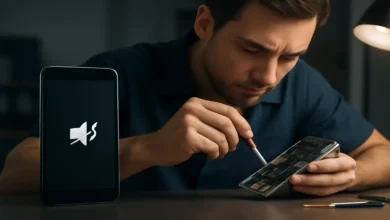
The main challenge in repairing the headphone icon issue lies in accurately identifying the exact cause of the problem, especially with symptoms that can be similar between physical and software issues. Therefore, diagnostics require the use of professional tools and high technical competencies, as provided by the “Action Repair” center. The diagnostic process usually involves:
- Inspecting the headphone port using magnifying lenses and electrical measuring devices to determine the presence of dirt, rust, or internal breaks.
- Testing the operating system and cache to check for malfunctions or hangs in system services.
- Testing sound through original earphones multiple times to confirm the validity of the sensors and circuits.
- Analyzing the impact of moisture or electrical shorts occurring within the device.
The importance of technical diagnostics lies in determining whether the problem only requires surface cleaning or if it necessitates replacing parts or internal repairs to prevent the malfunction from returning or spreading to other areas of the phone.
Professional Maintenance Services at Action Repair and Why We Recommend Them
Action Repair Center in the seventh circle in Jordan offers a wide range of services for handling audio malfunctions and the appearance of the headphone icon, with a guarantee of accurate diagnostics and the use of advanced technical expertise. If you wish to protect your device and ensure a return to optimal performance in the shortest time, here are the advantages of utilizing their services:
- Professional diagnostics using advanced electronic testing equipment.
- Cleaning the headphone port and phone parts professionally and with specialized tools to prevent damage to delicate phone components.
- Repairing headphone port malfunctions or replacing damaged parts with original and certified ones to ensure efficiency and longevity.
- Resolving software issues related to the system or audio applications.
- Providing a warranty on maintenance work that assures the user peace of mind and confidence in repair quality.
- Effective customer service and quick task completion to respect the client’s time.
The advantage of working with a professional center is that you ensure the problem does not worsen and avoid secondary damages resulting from DIY repair attempts or non-professional technicians, where unsuitable tools or low-quality spare parts may be used.
Are Genuine Parts Important When Repairing the Headphone Port?
The quality of spare parts used in maintenance is one of the most prominent factors in the success of the repair and ensuring the device’s operational sustainability. When replacing the headphone port or the associated circuits, care must be taken to select original or high-quality spare parts that match the specifications of the manufacturer. Failing to adhere to this can lead to:
- Repeated occurrences of malfunctions periodically.
- Deterioration in sound quality or complete disappearance of some device functions.
- Negative impact on other electronic circuits due to differing industrial standards.
- Loss of the company’s warranty if non-compliant parts are used.
At Action Repair, strict oversight is enforced on the quality of replaced parts, and the device is fully tested after maintenance to ensure the restoration of all sound functions optimally.
Tips for Protecting the Headphone Port and Avoiding the Return of the Problem
To maintain the efficiency of the headphone port and prolong the virtual life of the phone, there are several easy-to-follow tips that significantly reduce your exposure to this problem again:
- Ensure to keep the phone away from dusty and humid environments and store it in a closed case when not in use.
- Avoid connecting or disconnecting earphones forcefully or abruptly, as this may damage the internal sensors.
- Do not clean the headphone port with any liquid substance or sharp metallic tool.
- Disconnect the phone immediately if exposed to any liquid and place it in a dry environment until it dries completely.
- Periodically check for official updates for the operating system and install them as soon as they are released to avoid software errors.
Following these guidelines ensures you a stable user experience and protects your investment in your smartphone against costly malfunctions over time.
When Should You Go to a Specialized Maintenance Center?
Trying initial solutions may help resolve the problem when it is superficial or temporary, but there are cases where it is not advisable to continue using the phone or delay intervention and requires direct technical assistance from an authorized maintenance center:
- The sound has completely stopped working on the phone despite restarting and cleaning.
- Additional faults appear, such as the device vibrating when trying to play sound or abnormal heating around the headphone port.
- Visible damage or breakage around the internal edges of the headphone port easily seen with the naked eye.
- The phone remains in the “headphone” mode even after clearing the port of dirt and trying all software solutions.
- A repeated error message appears regarding the presence of headphones despite not being physically connected (especially after the phone was exposed to water or dropped from a height).
Failing to address complex malfunctions early may lead to increased repair costs or even a permanent loss of audio functions, so it is advisable to direct contact with a qualified center like “Action Repair” to protect your device and safeguard your data.
The Role of Customer Service and Technical Support in Professional Maintenance Centers
Enhancing the customer experience is not only about solving the problem promptly but also about providing comprehensive support that includes a full explanation of the malfunction and how to avoid it in the future, clarifying every item on the maintenance bill, and ensuring the device is returned within a short period. Thus, “Action Repair” stands out for its quality technical support and complete transparency in dealing with customer needs and requests, with the ability to book inspection and follow-up appointments online or via phone.
Frequently Asked Questions About the Appearance of the Headphone Icon Without Being Connected
What is the first step to take when the headphone icon appears without connecting earphones?
It is preferable to start by carefully cleaning the headphone port using a dry cotton swab or appropriate air blower to remove any accumulated dust, avoiding using any metallic tool. If the problem persists, you can try connecting and disconnecting the headphones several times or restarting the device.
Can light moisture cause this problem permanently?
Light moisture may cause a temporary hang in the headphone port sensor, but leaving the phone in a dry environment usually resolves the issue. If symptoms persist after the phone dries, we recommend conducting a professional inspection for the possibility of electrical shorts or internal rust.
Does updating the phone’s system resolve the issue of the headphone icon appearing in all cases?
Updating the system may address software errors or hangs in audio-related services, but it will not resolve faults stemming from physical damage to the port or the entry of dust and water into it. Therefore, the cause must be accurately determined before relying solely on software solutions.
Can attempts at self-repair exacerbate the problem?
Yes, using sharp tools or liquid cleaning materials on the headphone port may harm the delicate sensors and cause permanent damage, and changing parts with non-professional technicians may lead to a complete loss of sound functionality or the appearance of new side faults.
What is the importance of using original spare parts when repairing the headphone port?
Original or certified parts ensure complete compatibility with the phone’s hardware, maintaining sound quality and performance reliability for an extended period, greatly reducing chances of the issue recurring or technical complications occurring.
How can the phone later be protected from the recurrence of the headphone icon issue?
Paying attention to not expose the phone to dusty or humid environments, periodically cleaning the port using suitable tools, and regularly conducting system updates are all effective methods to protect the headphone port from malfunctions.
When should one stop attempting to fix the problem personally and go directly to an authorized maintenance center?
If the headphone icon continues to appear despite trying all simple solutions, or if other symptoms such as audio cut-off or repeated error messages appear, or after the phone has been dropped or exposed to water, it is better to head to an authorized maintenance center for a thorough examination of the device.
Does repairing the headphone port affect the other functions of the device or the user’s data?
When repairs are made at a professional maintenance center using modern tools and original parts, the malfunction can be fixed without affecting the user’s data or other services in the device. On the other hand, non-professional repair attempts may endanger user data or cause further malfunctions.
What is the expected duration for fixing the headphone icon appearing issue at Action Repair?
This depends on the cause of the malfunction; diagnosing and performing simple repairs usually takes between 30 to 90 minutes, while cases involving the replacement of internal parts may take a day or two depending on the availability of parts and the state of the device.
Conclusion and Final Recommendations
The issue of the headphone icon appearing without connection is one of the common faults that profoundly affects the performance of smartphones and the quality of your daily experience. Delaying the handling of this issue may lead to larger problems, such as sound loss or even disabling the phone from functioning partially. The solution always starts with attempting self-diagnosis through cleaning the port, restarting the device, and updating the system, but if the problem remains unresolved, visiting an authorized maintenance center and choosing professional services such as “Action Repair” is the best guarantee to restore the device’s efficiency and protect your investment in your phone. Do not hesitate to seek technical help in a timely manner to maintain the quality of your device and extend its lifespan at minimal costs.